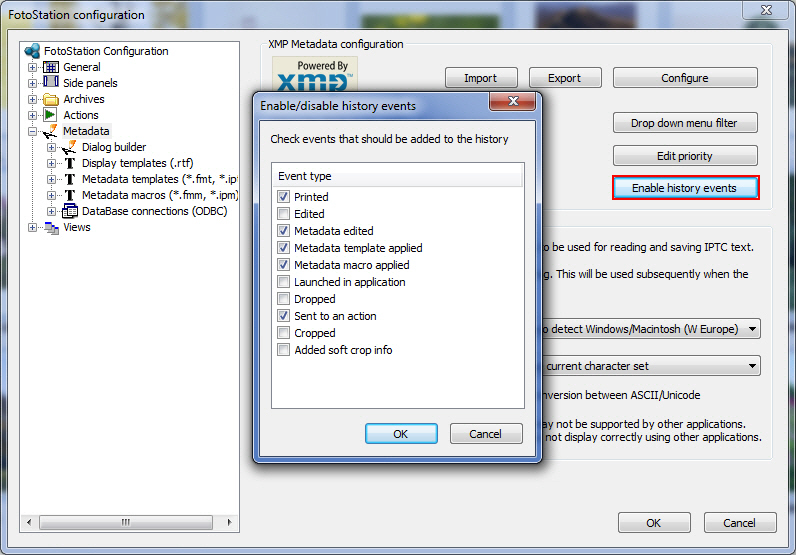
FotoStation can keep a log of certain events, i.e. processes that have been applied to images or other files in an archive or other source type. This log is called the file’s History and can be viewed in the Text panel by clicking on the History button. By default, the only event logged in the history field is the printing of images, but this can be configured (see below) to include other events such as Text edited, Sent to an action, etc.
A maximum of 10 history events can be saved in a file. This means that if more than 10 enabled events have been performed on the file, the oldest event will be deleted from the history log.
When an enabled history event occurs, information regarding this event is saved to the file. Saving information to a file is time consuming, especially if the event is performed on several files. We recommend enabling only the events that you for various reasons need, for example if you need to search for files that have been printed, or if you would like to see who changed a file’s metadata.
To enable a history event, open the FotoStation configuration window (In Windows, click on the File menu and select Configuration from the menu. On the Mac, click on the FotoStation Pro menu and select Configuration from the menu, or use the Command–, keyboard shortcut.). Click on the Metadata node and then click on the Enable history events button. The Enable/disable history events window will open, as shown in the screenshot above. Select the events that you would like to enable by clicking inside the checkbox in front of the desired event (for more information regarding each of these events, see The different history events subtopic below) and then click on the OK buttons to close the windows.
Up to 10 different history events can be recorded and logged in the history text panel. Please note that these events must be performed from within FotoStation. For each event, the following is recorded:
Event: The event that was performed.
Date/Time: The date/time the event was performed.
User: The user that performed this event.
Description: Provides information regarding the event performed. See each history event for more information regarding this field.
Printed: Records if the file has been sent to a printer. The Description field shows which printer the file was sent to. Note that the printer can also be a PDF printer, i.e. the file was printed to a PDF file.
Edited: Records if the file has been edited using FotoStation’s Edit function.
Text Edited: Records if the metadata has been changed using the text editor in FotoStation.
Text Template Applied: Records if a template has been applied to the file. Note that the template must be applied either from the Text menu (select desired template from the Apply template/macro submenu) or from the context menu (Apply template/macro). The template’s name will appear in the Description field.
Text Macro Applied: Records if a macro has been applied to the file. Note that the macro must be applied either from the Text menu (select desired template from the Apply template/macro submenu) or from the context menu (Apply template/macro). The macro’s name will appear in the Description field.
Launched in Application: Records if the file has been opened in its associated program (e.g. using the keyboard shortcut Ctrl+Enter in Windows/Command–O on the Mac) from FotoStation.
Dropped: Records if the file is dragged and dropped into an application such as Microsoft Word. The text “Bitmap drop” will appear in the Description field.
Sent to an Action: Records if the file has been sent to an action. The action’s name will appear in the Description field.
Cropped: Records if the file has been cropped.
Added Soft Crop Info: Records if the file has been soft cropped, i.e. if crop information has been added to the file, but the file is not cropped.