Linking metadata fields can be a great help to quickly fill in related fields based on predefined content. You may have noticed that in the standard installation of FotoStation, choosing a location from the City, Country, Country Code or Province quicklists in the standard text editors will automatically fill in related fields. For example, you can choose a city and have the Country, Country Code and Province fields filled in automatically.
Linked lists are created using plain text files that are named according to certain rules. These files are typically stored in C:\Users\<username>\AppData\Roaming\FotoWare\FotoStation\Configuration\Localized\English\Metadata\Quick Lists
Let's look at the content of one of the bundled linked lists and how it is composed:
[Extract of the file 15_20.txt in the above folder]
SPO=Sport
Olympic Games
Men
Boxing
Women
Gymnastics
World Cup
Soccer
1994 USA
1998 France
2002 Japan - S Korea
Alpine
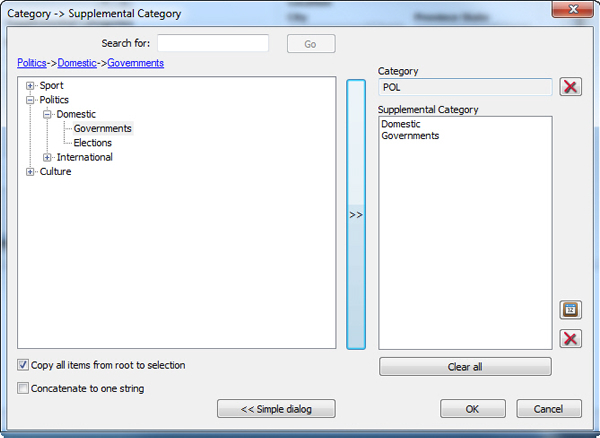
This file, 15_20.txt links fields #15 (Category) and #20 (Supplemental Category) together. This way, when you click on the quicklist button for either of these two fields in the metadata editor, FotoStation will open a dialog where you can choose the content of these fields from a thesaurus list:
When adding information this way, both the Category and the Supplemental Category will be filled in.
As you noticed in the example above, the text file linked two fields together based on a filename that separated the two fields with an underscore (15_20.txt). The underscore signifies that when you create content in the text file, your should tab-indent the values that belong in field #20. In addition to the underscore character, there's the possibility to use a dash and parantheses. You'll see an explanation of these in the table below:
|
File name field separators |
Function |
Example file name |
Example file content |
|
Underscore (_) |
Specifies that a tab-indented value in the text file is mapped to the field number that follows. |
15_20.txt |
SPO Sports |
|
Dash (-) |
Specifies semi-colon separated text on the same level |
200_201_202_203-204-205-206.txt |
content1;content2;content3 |
|
Parentheses () |
Map the alias (after =) to this field |
100(101)_95_90.txt |
UK=United Kingdom |
Using aliases
Aliases can be useful if your metadata schema has fields with limited length that makes it difficult to know what the different used abbreviations stand for.
One of the example files in the default FotoStation installation uses country aliases to make it easy to choose a country from a dialog without having to know the exact country code. This file is called 100(101)_95_90.txt. Let's see how it's built up:
[Extract of 100(101)_95_90.txt]
NOR=Norway
Oslo
Oslo
Akershus
Lillestrøm
Eidsvoll
Fetsund
Nittedal
Sandvika
Ski
We start off with the three-letter country code that goes into field 100. Note the use of the alias, which is used to make the three-letter abbreviation easier to decipher when we access the thesaurus in FotoStation. As you will see later on, the way we name the file is also used to specify where the alias should be stored.
Next, we tab in to the next node, which is the State/Province field (field 95). Oslo and Akershus are Norwegian counties, so we will use those as examples here.
At the next indented level you type in the information that goes into field 90, City. (Oslo, incidentally, is regarded both as a city and a county.)
File naming conventions
100 relates to the Country Code field, which by definition will only allow three characters. Hence, the text in the first column will be stored in that field.
(101) follows 100 directly in the file name and specifies that the alias for field 100 (NOR=Norway, remember) should be stored in field 101, Country.
_95 specifies that content in the next indented column should be stored in field 95, Province State
_90 specifies that content in the last indented column should be stored in field 90, City.
Another example file
When you feel confident that you master these basic principles for linked list content and file naming, we encourage you to take a closer look at another sample file that was installed with FotoStation. In Windows Vista and Windows 7 you will find it in C:\Users\<username>\AppData\Roaming\FotoWare\FotoStation\Configuration\Localized\English\Metadata\Quick Lists
The file is called sample200_201_202_203-204-205-206(207).txt and makes use of all the available link types as well as aliases. Read through it and try it out!