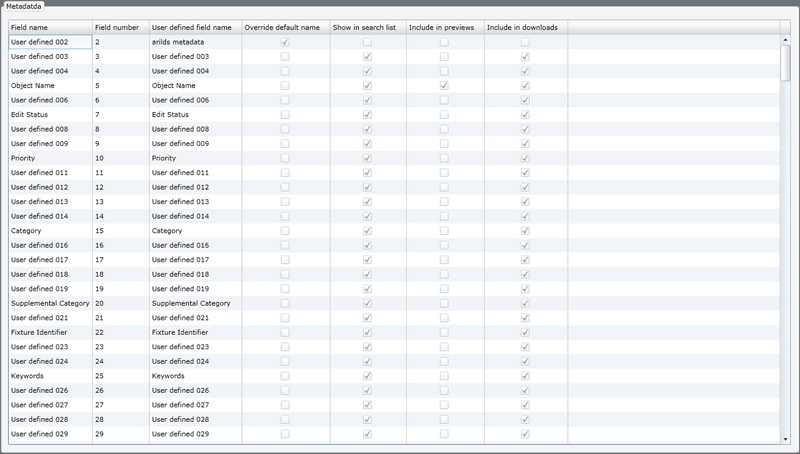
Where: Settings - Site - Metadata
The metadata settings let you control the display names for the text fields in FotoWeb. You can always see the original field names in the Field name column. The Field number column show the numeric codes for the fields. This code is used when you want to display the content of a field in the FotoWeb user interface.
You can easily change the label for a field by selecting the field and filling in the User defined field name box. This label will then be used throughout FotoWeb for this field, provided that you enable the option to Override default name.
In addition to the Field name there are other settings that apply to each metadata field:
Show in search list: This option controls whether the field is shown in the drop-down list in the search user interfaces. However, it does not stop users from searching in the field, and the field is not excluded from the searches. You should only enable this option for the fields that you use for storing information. This will make it easier for users to understand your archive structure.
Include in previews: This option controls whether the content of the selected metadata field is included in the text block of previews delivered from FotoWeb. If the option is enabled, users can save the preview images from your web site and see the metadata with FotoStation, Photoshop or any other XMP compatible software. It does not control whether the field is shown in the preview page or not. If you want to change which fields are shown there, you must use an editor to change the HTML code of the ‘Preview.fwx’ page. More information about making changes to FotoWeb can be found in the ‘Customizing FotoWeb 7.0’ document.
Include in downloads: This option controls whether the content of the selected metadata field is included when the file is downloaded (high-resolution download). If the option is enabled, users will be able to see this text if they view the file in FotoStation, Photoshop or any other XMP compatible software. You may want to mask certain fields on download, e.g. the History field that contains information on how a file has been used in your system.

Under Keywords Lists you will find a scheduler that lets you extract keywords from fields that data mining are enabled for. This will generate XML output files in a folder (Keyword Lists) inside the site folder. These files are typically used by third-party systems for integration purposes.