Processing profiles are used by FotoWeb to apply image processing or third-party processing to files when a user requests a download or orders the files via the shopping cart. They can also be used in the FotoWeb Desktop Extension for Adobe InDesign. FotoWeb has built-in mechanisms for changing image file formats, image resizing, color conversion with ICC profiles, watermarking and sharpening. In addition, processing profiles can be used to deliver files to a third-party system which can process the files in any way before delivering them back to FotoWeb.
To create a processing profile, go to the Processing Profiles node on the Workflows tab in the FotoWeb Administration. Click on Add processing profile to create a new profile.
Processing profile settings
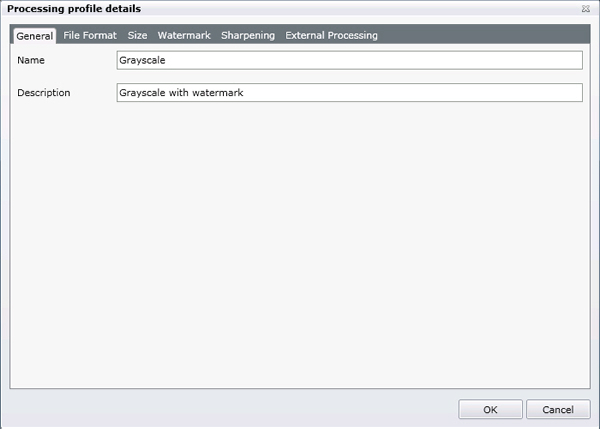
Start by naming the processing profile and entering a description of what it does.
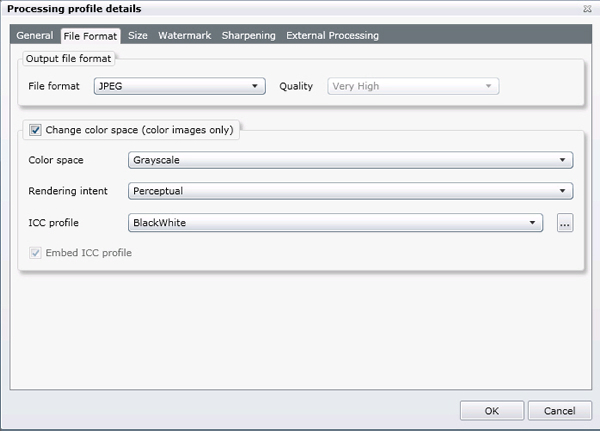
Here you can choose the output format of the processed file. If you would like to change the color space also, you can choose the output color space, the rype of rendering intent and the ICC profile to be used for the conversion. It is also possible to embed the ICC profile in the output file. If the file has an embedded ICC profile before the processing, this profile will be used as the input profile.
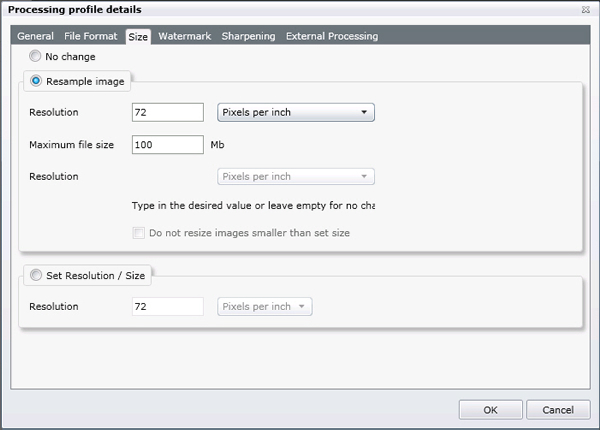
Here you can set resizing options. You can choose not to change the output size, to resample the image or to simply stamp the file with a resolution or size without altering image data.
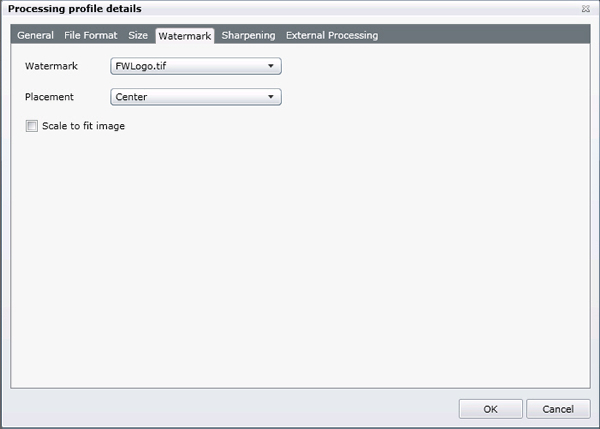
If you would like to add a watermark to all files before they are delivered to the client, you can do that here. If you would like to add custom watermarks to the list, they will have to be copied to the Watermarks folder in the Server Settings folder. When creating a watermark you can achieve transparency by making sure those areas have a color value of 128 in R, G and B channels.
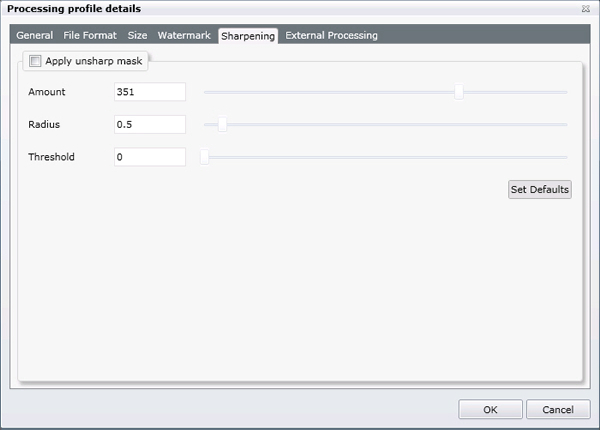
To add unsharp mask to the pictures, check the corresponsing box and adjust the Amount, Radius and Threshold settings. If you are uncertain about the optimum values, try with the default settings first.
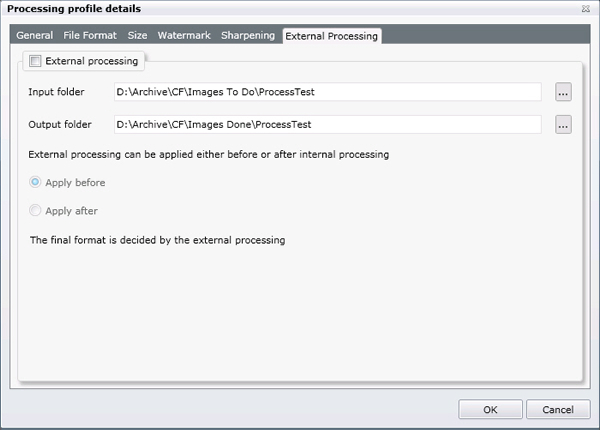
If you would like to process the files in an external application before delivering them to the client you can enable external processing. The Input folder is where FotoWeb will deliver the files and the Output folder is where the files will be picked up after processing. FotoWeb will use the file name to recognize the output file, so make sure that the external processing engine does not rename the file. (Changing the file's extension due to a change of file type is not problematic, however.)
Finally you can choose whether the external processing should be applied before or after FotoWeb applies its processing as set up on the above tabs.
A processing profile set is a collection of processing profiles. This set can be added to an archive so that when the user downloads files or orders using the shopping cart, he will get the chance to choose from the available processing profiles in the set. It can also be used to offer users of FotoWeb Desktop for InDesign the possibility to process files on the server before delivering the resulting file to the InDesign layout.
Creating a processing profile set
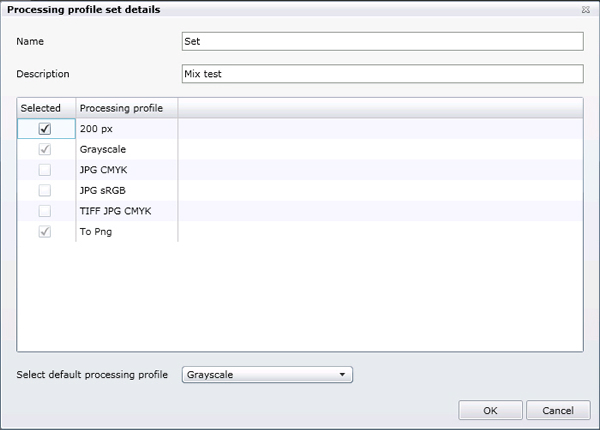
Go to the Processing profile sets node on the Workflows tab and click on the Add processing profile set button.
Name the set and select the profiles you would like to include in the set. You can also define a default profile that will be the default selected profile in the user interface for instance when the user goes to the Checkout page for the shopping cart.
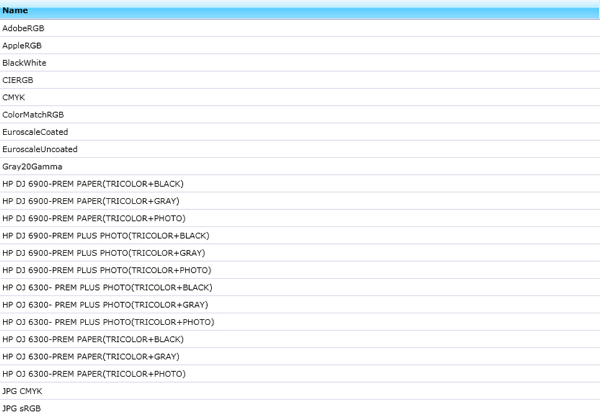
Because the processing profiles allow you to perform color conversion, FotoWeb lets you import ICC profiles that can be used for this purpose. Go to the ICC Profiles node on the Workflows tab and click on Import ICC profile. You will then be able to browse the server to locate he profiles, which in turn will be copied to FotoWeb's ICC folder inside the Site Settings folder.