The FotoWeb Administration Console (FAC) has been redesigned for Service Release 2. Most of the functionality in the FAC has now been moved into the configuration screens in the Operations Center. However, certain maintenance options remain in the FAC. Below you will find a description of the functionality that remains.
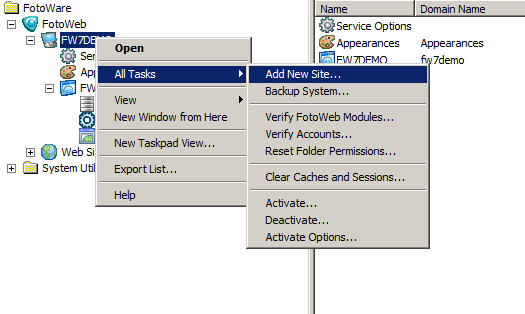
In the Server node context menu you will find functionality to:
- Add a new site to IIS
- Backup the FotoWeb system configuration
- Verify FotoWeb modules and accounts
- Reset folder permissions
- Activate FotoWeb options
The procedure for adding a new site to FotoWeb is discussed in this chapter in the manual. FotoWeb Enterprise includes three sites, while additional sites can be purchased and activated using the Activation feature in the Server node in FAC.
You should regularly back up your FotoWeb system to make sure that the configuration can be easily restored in the case of hardware failure. Backup of Index Manager indexes and your documents are not covered by this backup and must be handled separately.
This chapter contains more information about backing up your system.
This option will verify that all FotoWeb's modules are the correct version. This is a good way of testing that e.g. an upgrade has run smoothly and that all components have been updated to the latest version. If you are experiencing difficulties with the system this is a good place to validate that the components running on the system are compatible versions.
This option will verify that the Process Account specified in the Operations Center has sufficient privileges to run the FotoWare services. If it doesn't you will be given the opportunity to grant those permissions explicitly. (You will have to be logged on as an administrator to do this.)
Specifically, the Process account needs the following privileges:
- Log on as batch job
- Adjust memory quotas for a process
- Replace a process level token
- Log on locally
If you suspect that the FotoWeb folder permissions have been changed inadvertently, you can use use this option to reset the permissions on those folders. The correct permissions for all FotoWeb folders are discussed in this chapter.
If you plan to move your Fotoweb instalaltion to another server, you will have to deactivate the software. That can be done from this menu. You can also activate a new product key after renewal of an SMA, or you can add extra sites you a FotoWeb enterprise by activating a site product key.
The Service Options node opens the FotoWeb Service options in the Operations Center. Read more about these options here.
All FotoWeb versions allow you to change the appearance schemes of the installed templates. The schemes let you set custom colors, add company logos and make other smaller adjustments to the templates without the need to write any html. Learn more about creating custom appearance profiles here.
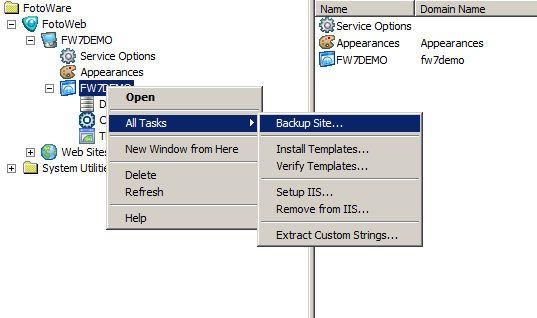
This menu will start a site backup wizard that will lead you through the entire backup process in easy steps. You can read more about these routines in Backing up your system.
After upgrading to a new version of FotoWeb you must manually update the templates so that they match the new version. This option allows you to install templates on different levels according to customization performed on the templates.
If you have customized templates for your site, then you probably do not want to install FWX templates. However, you must at least install ASP.NET modules.
If you have several sites on your system, you must remember to update the templates of all the sites.
You will be asked to enter the path to the new template set. This is a ZIP file in the C:\Documents and Settings\All Users\Application Data\FotoWare\FotoWeb\Server Settings\Templates folder that is updated when you install a new version.
Clicking on the Browse button (...) will display a list of available templates that are compatible with the license for easy selection.
Tip! Always make a backup of the existing templates before installing a new version.
Every time you customize or modify your templates or upgrade to a newer version, you must verify your templates. This is to make sure that the modifications made are consistent with FotoWeb and if the newer version of FotoWeb continues to support the tags in your old templates set.
This menu will start a template validation wizard that will guide you through the entire process. Please see the document ‘Customizing FotoWeb 7.0’ to learn about templates and how to use this template validation tool.
Setup IIS: This menu allows rewriting the site entries in IIS. It can be a good idea to run this tool in case of a configuration mishap in IIS.
Remove from IIS: This menu allows removal of site entries from IIS. Use this tool to remove all sites from IIS before uninstalling FotoWeb.
If you have made custom templates for your FotoWeb system and have enabled localization of labels in the templates using the <translate> tag, the custom string extraction can be used to generate a custom locale file that can be translated to make your FotoWeb site appear in different languages.
FotoWeb will scan your templates and add any translatable entries to a custom locale file which can then be localized using the FotoWare Translator utility.
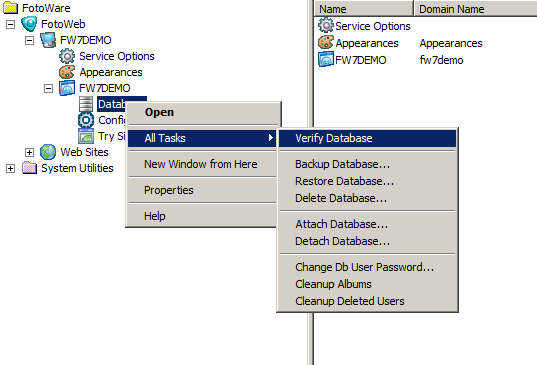
FotoWeb provides a set of tools for database maintenance. By choosing Properties in the context menu you can configure the database connection directly from FAC. Note that this functionality is identical to the database configuration panel you find in the Operations Center.
Verify database: Verifies the database connection and presence of required tables.
Backup database: Creates a backup of the database.
Restore database: Restores database from a previously created backup.
Delete database: Deletes the database
Attach database: Attaches a database to FotoWeb.
Detach database: Detaches the FotoWeb database.
Change DB user password: Allows changing of database user password.
Cleanup albums: Cleans up album tables for image references that no longer exist.
Cleanup Deleted Users: Cleans up all tables for user references that no longer exist.
if you like, you can access the site configuration directly from FAC. This will open the FotoWeb site configuration in the window on the right.